Gradientspace Node Graph
Quick Links: [ Download ] [ Graph Editor ] [ Main Features ] [ More Features ] [ Node Libraries ]
Introduction / Background
Node Graphs are everywhere in the Computer Graphics industry, from OG Maya graphs for animation and modeling, to SideFX Houdini’s for VFX, to modern incarnations like Blender’s Geometry Nodes. Outside of graphics, there are popular NodeGraph-based tools for Home Automation (CodeRed), Enterprise Data Processing (Apache NiFi), Signal Processing (MATLAB SimuLink), Scientific Data Collection (NI LabView), Data Mining (ORANGE), and Analytics (Knime), and many more problem spaces. Node Graph interfaces for GenerativeAI have also become quite popular. Some are very focused on simplifying image and video generation, like Adobe Project Graph and Weavy. Others like Comfy UI and Google’s Visual Blocks go deeper, allowing for the inputs and outputs of arbitrary AI Models to be chained together and processed.
Personally, I had never paid much attention to NodeGraph-based workflows until my time working at Epic Games, adding Modeling and Geometry-related features to Unreal Engine (UE) and Unreal Editor. The Geometry Script and Scriptable Tools systems I designed there were implemented as Node libraries inside Unreal Engine’s Blueprints (BP) system. What I learned over time was that Game Developers and Tech Artists were using the BP system to solve very complex Programming problems. Some were specific to games/graphics/geometry, but I also saw an enormous amount of usage to deal with standard computing problems like Data Management, Validation, Analytics, Testing, Quality Assurance, and so on. (If you are interested, here is a quick demo of building a Blueprints-based Tool, and a longer video by Aardman Animations about tools they built to make Chicken Run: Eggstraction)
What I came to realize was that UE’s Blueprints are an extremely flexible general-purpose NodeGraph-based Programming System. And the users of Blueprints - primarily Tech Artists and Pipeline Devs who don’t consider themselves “Engineers” - were in fact doing Software Engineering work as complex as many Text-based Programmers do. I saw lots of in-house interactive Tools with complex GUIs and application logic, built entirely by wiring up Nodes. And that the affordances of this graphical programming interface made it vastly more approachable to people who might hesitate to dive into text coding. It’s really too bad the Blueprints system is trapped inside a Game Engine! And so I decided to do something about that…
I wanted to build a system that was even more flexible than Blueprints, in particular that could easily integrate a Node-based interface with text code. I wanted it to be a standalone NodeGraph system and Editor - not something tacked-on to some other App, but rather a first-class programming system that optionally could be integrated into other things. And eventually I realized that once you have this abstraction layer that ‘chunks’ arbitrary code into discrete Nodes and explicit Connections, there is really no reason to stick to one programming language. So in addition to C# (the core language used to implement the Graph and Editor), I added support for Python Nodes, and I’ll hopefully manage to support other languages in the future.
Although it’s still early days for this project, I think it’s already a very powerful programming system. I think it’s a great way to introduce novices to the power of NodeGraph-based development, and a gentle way to introduce text-based coding where necessary. It’s also proving to be quite a nice way to integrate LLM-based code generation into a higher-level development system (more on that below).
So, if you are interested, I hope you’ll give it a try, and I definitely want to hear your feedback. Find me on BlueSky, or on the Gradientspace Discord, or on YouTube, or on that older place, or via email…
-Ryan Schmidt, gradientspace corp
Download
You can download a Windows Installer for the GSGraphEditor app and related libraries tools here: [ Win64 Version 1.0.0 ]
The app builds and runs on OSX, but it has some rough parts and I haven’t figured out how to make an installer yet - check back soon. Linux support will also be forthcoming.
Gradientspace Graph Editor
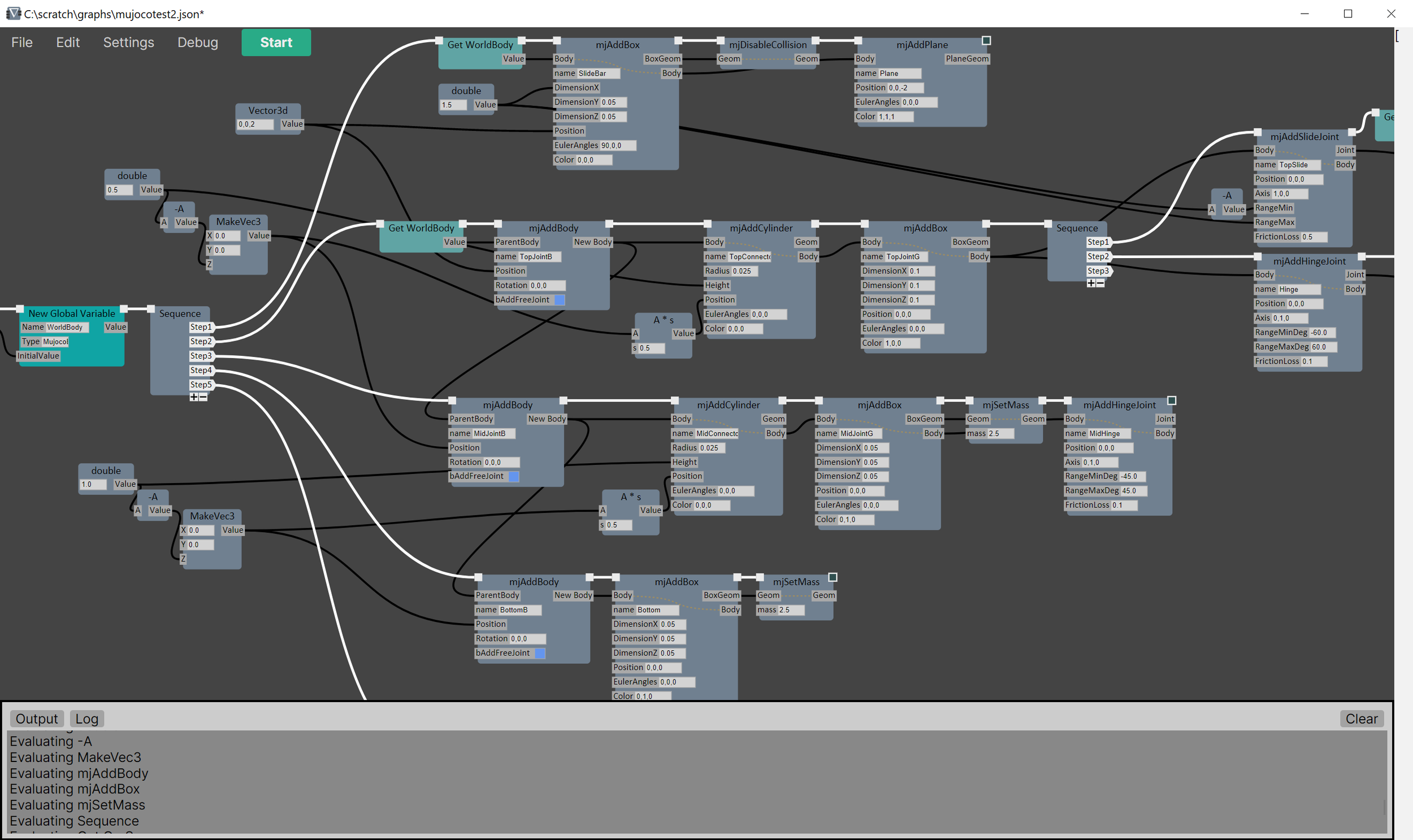
The main way you can use this project right now is via the GSGraph Editor application. Using this app you can create and save/load node graphs, via .gg graph files (a simple json file format, see more below).
The UI is relatively spartan so far, with most UI development effort going into making interaction in the 2D graph viewport efficient. The basic interaction loop is, you place a new node (either by right-clicking or dragging off an existing pin), and then you connect some wires, and then you do that over and over.
Many of the standard “UI things” you might expect are (kinda) there, like pan (MMB) and zoom (RMB), click and rectangle-marquee selection, right-click context menus, undo/redo and copy/paste. Some big stuff is missing, like being able to customize colors, reorganize the UI, customize hotkeys, and so on.
In terms of graph editing, I’m trying to follow conventions from other apps where possible, and where it feels right. There are some nice shortcuts, like ctrl+click to disconnect wires, auto-connecting the sequence/exec pins, and an Alias system for avoiding those crazy across-the-graph wires. Some critical stuff like collapsing nodes and block commenting hasn’t made it in yet.
There are undoubtedly bugs - if you hit any, please let me know. There isn’t any documentation. I’ll get around to doing a UI overview video soon! You can encourage me to make progress by dropping by my Discord or messaging me on the platforms linked above.
If you are interested, the Graph Editor is a C#-based desktop application built using the Avalonia framework. The 2D graph viewport uses a custom UI library that only depends on SkiaSharp for rendering to a bitmap, and is basically an isolated thing simply hosted by the Avalonia app. My intention is that eventually the core Editor will be a separate component that can be integrated into other apps (even non-C# apps), to support end-user NodeGraph Programming everywhere!
(The Graph Editor code is currently closed-source.)
Gradientspace Graph Engine
The underlying GSNodeGraph libraries and Evaluation Engine, as well as most of the Node Libraries, are completely isolated from the GSGraph Editor, and available as a separate MIT-licensed open source C# project on GitHub (link). This includes save/load of the JSon graph serialization format (.gg files), so the .gg files you create using the GSGraph Editor can be completely loaded and evaluated in your own C# apps.
A command-line graph executor, GSGraphCL, is also included. This means you can use GSNodeEditor to create command-line utilities implemented as .gg node graphs, and then run them from the command line or other scripting languages. A standard library of nodes for accessing command-line arguments and environment variables is included, as well as a substantial Filesystem library which exposes many of the most commonly-used functions from the C# System.IO namespace.
The Graph Engine is where development has been focused, and it already supports quite a powerful and extensible feature set. Below I will describe some of the biggest features - Code Nodes, Python Nodes, and LLM-Based CodeNode Generation. But keep scrolling for brief descriptions of many other Graph features like Custom Node Libraries, Automatic Type Conversions, Variables, Graph-Defined Functions, Error Handling, Versioning, Renaming, and Hot Reloading.
Code Nodes
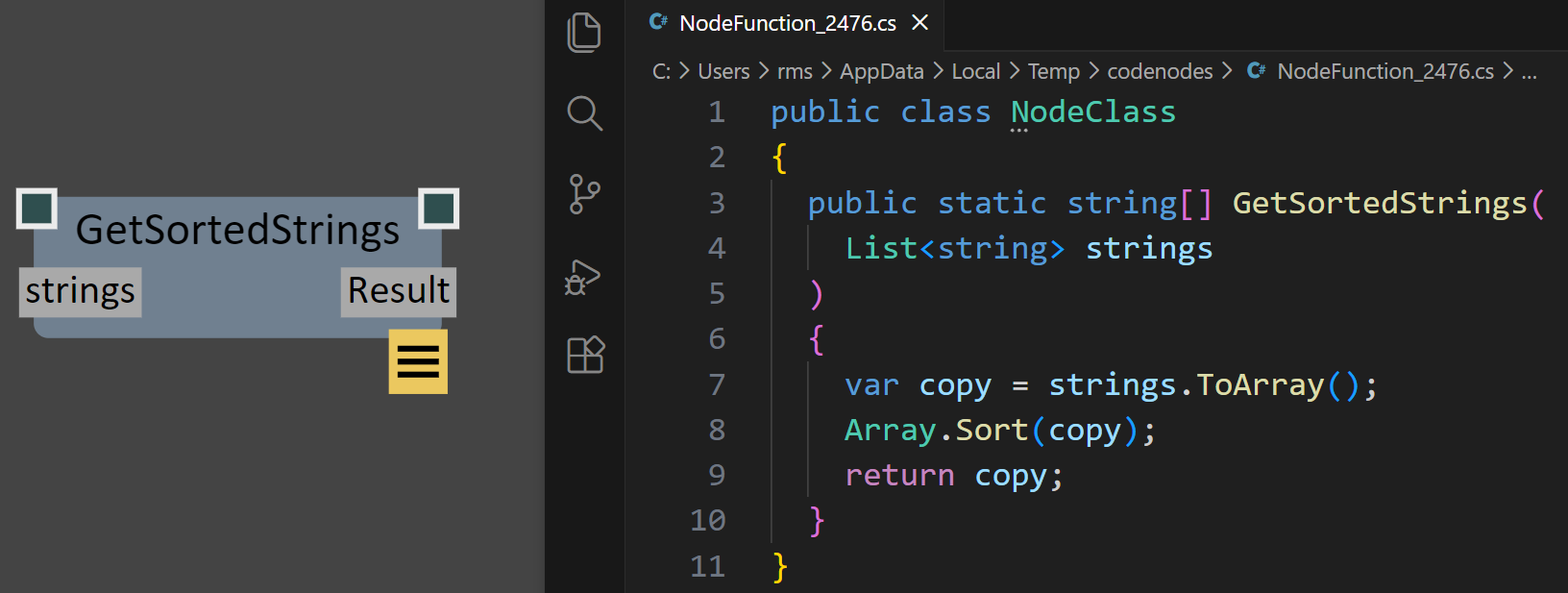
One of the most powerful features of GSNodeGraph is it’s support for Code Nodes, which are custom Graph Nodes that are defined by C# code that is stored as part of the Node and dynamically compiled on-the-fly using the Roslyn, the C# compiler SDK. A simple example is shown to the right, where the node GetSortedStrings is defined by the inline the C# code GetSortedStrings(). As the C# code is edited and saved, the graph node will automatically update.
The text for the C# Code Node is stored internally. When you click on the Edit button (in the bottom-right of the node), this internal code is written to a temporary text file and Visual Studio Code is launched to edit that file. As you save changes, the code will be recompiled and the Node updated. Compile errors will be shown via an Error Widget on the Node.
(GitHub Copilot integrated into VSCode is a great way to create and edit these code functions…)
Code Nodes allow you to leverage C# functionality that isn’t exposed in the standard GSGraph Node libraries. A powerful functional-programming example is shown in the video clip below, where the ProcessMeshVertices function takes a C# Function object, defined as Func<Vector3d,Vector3d,Vector3d>, which is used to transform every individual vertex of a Mesh. A custom CodeNode called NormalDisplaceFunc is created that emits a matching C# Function, defined via a lambda. Combined, this setup allows for arbitrary mesh deformations to be implemented efficiently, without requiring any (slow) loops at the Graph level (something I never figured out how to achieve efficiently in UE Geometry Script). And the Func returned by the code node is real jit-compiled C# code, so the overhead is no larger than if the deformation was written in pure C#.
Multi-Language Support
Although GSNodeGraph is built with C#, the NodeGraph system is flexible enough that it can support other programming languages, as long as they have some level of interoperability with C#. By leveraging the excellent Python.NET open-source project, I have implemented initial support for Nodes implemented in Python, and some Python datatypes. Currently Python is primarily supported via Python Code Nodes, with some basic support for conversion between Python lists and C# Array/Lists, and support for Python tuples.
Python Code Nodes work the same way as C# Code Nodes, where the Python code is stored inside the Node, and edited in VSCode via automatically-managed temporary files. A simple example is shown below.
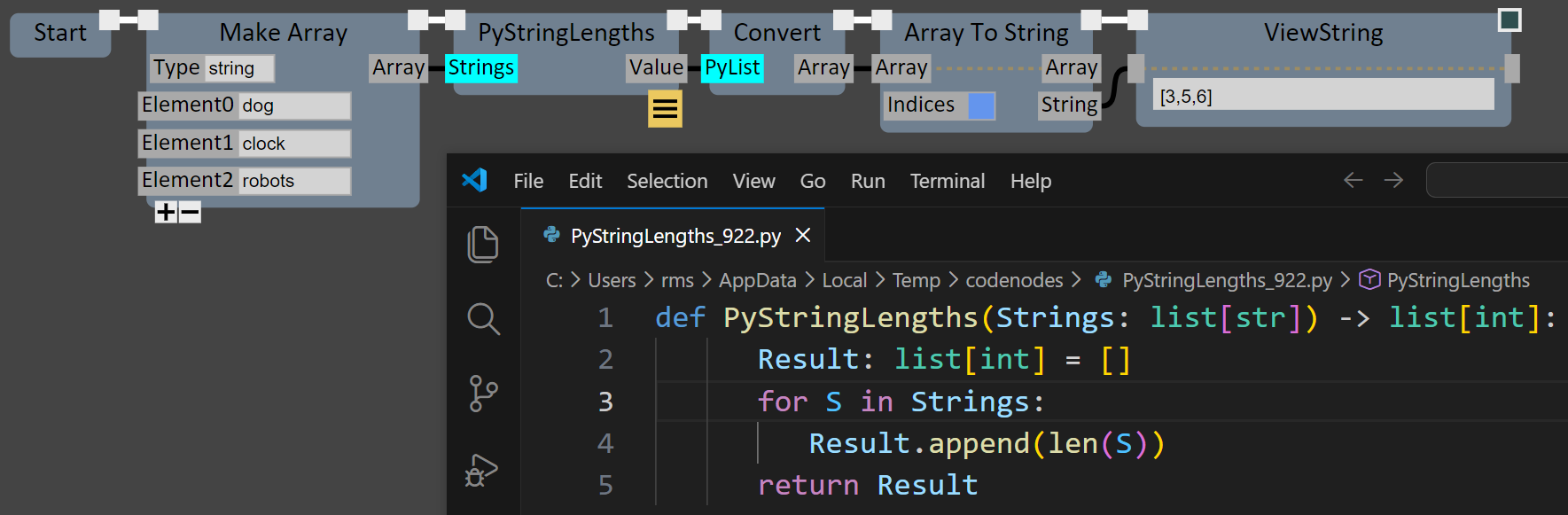
Note the usage of Type Annotations to indicate the Types of arguments and return values in the Python code above. The Type annotations are not strictly necessary - the same graph will execute correctly without them, because Python.NET can handle many Python/C# data conversions automatically via C#’s powerful dynamic programming constructs. Untyped Python data & objects can also be passed directly between Python Code Nodes without any conversion to C# Types. However without explicit Types, many of the Type-based contextual features of the Graph Editor will not be functional.
Support for TypeScript and potentially other languages is being investigated…
AI / LLM-based CodeNode Generation
Given the current popularity of ‘Vibe Coding’ and LLM-based coding tools like Cursor, there is a real and valid question of whether or not future Programming Tools will be needed at all. If we can solve our programming problems via high-level chatting with an AI, is anyone going to bother with things like Node Graphs?
Clearly I think the answer is “yes”. Anyone who has spent time actually trying to get things done using these magic coding robots has quickly discovered their limits. But even further - I think Node Graphs are an ideal environment to leverage LLM code generation. One of the big issues with ‘Vibe Coding’ for non-programmers is that they have no capability to “fix” things themselves, when the robot goes wrong. With a node graph, the high-level structure of a program is immediately visible, and the “syntax problem” people have in understanding huge blocks of text is a non-issue.
So to take a step in this direction, I’ve implemented a simple “Node Wizard” in the Graph Editor, that makes calls to a remote LLM service to generate the C# function for a custom Code Node, based only on a text description of what the Node should do. Incremental editing of the resulting code is also supported. Internally, this Wizard uses detailed system prompts that (try to) ensure that the generated C# function works properly. (Python support coming soon)
A video demonstrating a simple use case for the Node Wizard is shown to the right. In this video I ask for a node that fetches a list of my Github repositories. I have no idea how to actually do that, and the generated code is not trivial - much more complex than most of the system nodes. But it works great, and I could trivially paste this code into a precompiled C# Node Library if it was something I wanted to re-use.
I’m really interested to see what people do with this capability. Note that to use this feature in the current build, you will need an Anthropic developer API key (sign up here) and to pay for some tokens (so far I’ve used 72 cents USD to generate a few hundred functions…). Also, currently only standard dotnet SDK namespaces should be used in the generated code, as well as geometry3Sharp (the system prompt will try to enforce this, but you can override it by asking explicitly). This is a tricky limitation that I’ll be working to alleviate (maybe the robot can help…)
Accessing AI Models via Nodes
In a node-graph context, being able to query AI for specific operations can be very powerful - artists can do amazing things with nodegraph-based Generative AI Tools like Comfy and Weavy. Although it’s not specifically designed for this use case, GSNodeGraph can easily be used for this kind of thing. I’ve included a small node library as a proof of concept, which provides access to Claude and Gemini for Text/Vision queries, and Gemini Nanobanana for image generation (you need to set up your own API keys to use these, for now). A simple example is shown below, using a Claude query to do “prompt expansion” and then Nanobanana to generate an image.
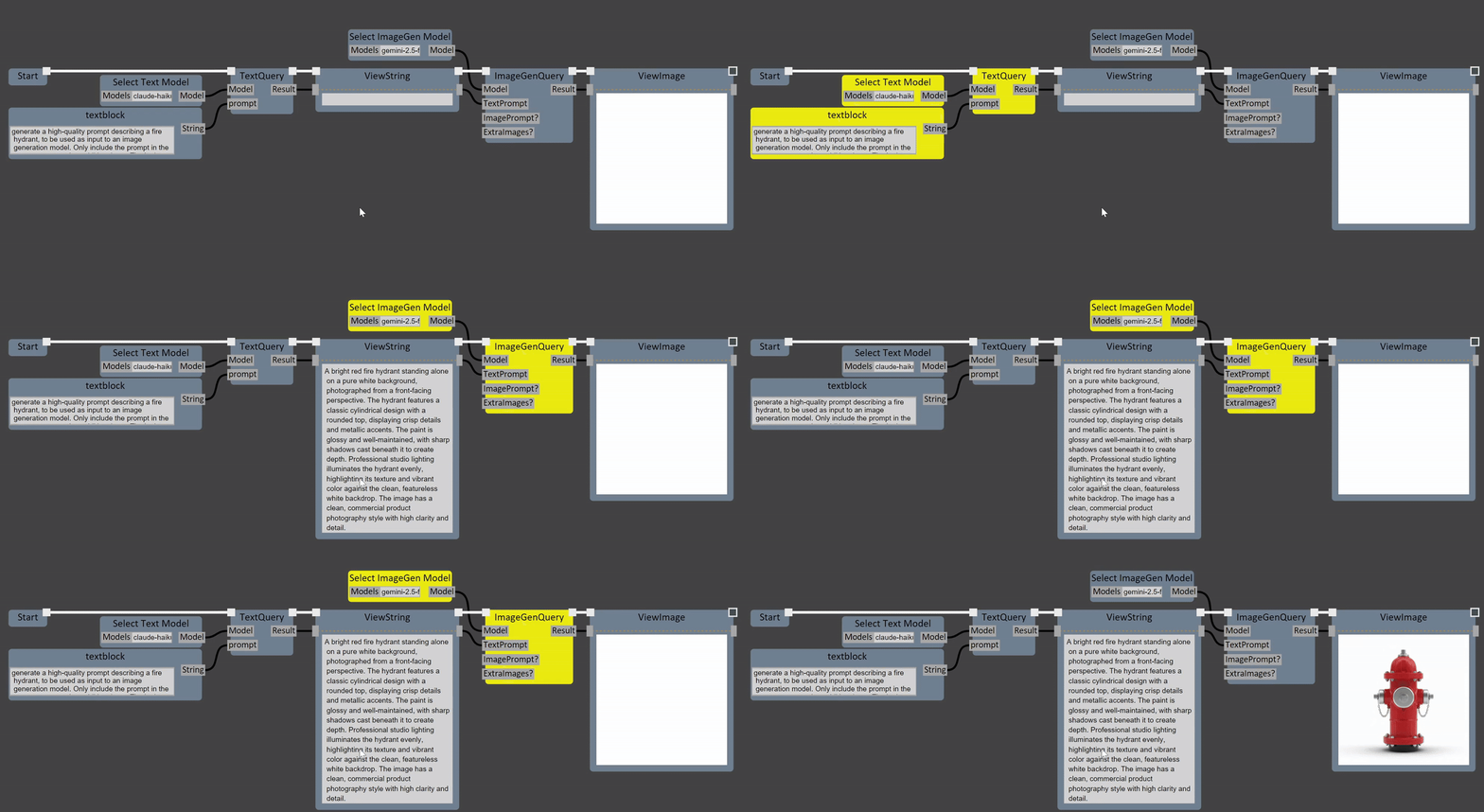
Using LLMs in a node graph gives you a lot of power to do “magic” things like identify objects in images. I’ll be exploring this concept further in the future!
Additional Graph Features
GSNodeGraph has been in the works for a while now, and many useful features have been implemented. Keep scrolling to find brief descriptions of the following:
Custom Node Libraries
Type Conversions
Placeholder Nodes
Dynamic Nodes
In/Out Parameters
Pure Nodes
Variables
Aliases
Graph-Defined Functions
Error Handling
Versioning
Renaming
Gradientspace Graph File Format (.gg)
Custom Node Libraries

GSGraph supports custom nodes implemented in two ways. The first is to subclass the generic node base-class (NodeBase), or one of the various other parent-node types. The second, and what I think will be much more common, is to simply implement C# static functions and tag them with the [NodeFunction] attribute, like this:
[NodeFunctionLibrary(“MyLibrary”)]
public static class MyNodeLibrary
{
    [NodeFunction(ReturnName="ResultString")]
    public static string MyNodeFunction(string A = "arg1", string B) { … }
}
When the DLL containing this type is loaded, the Graph Engine will automatically scan the public classes for [NodeFunctionLibrary] tags, and [NodeFunction] members, and surface them as Nodes in the Graph Editor. The argument names and default values will automatically be extracted using C# reflection. C# “out” and “ref” parameters will automatically be converted to additional node Output pins. The NodeFunction Attribute has various additional parameters, like the ReturnName shown above, to further customize the Node.
You can easily develop your own custom node libraries against an installation of the Editor desktop app by starting with this Sample Custom Node Library project on Github. When you launch/debug this project, it will run the Editor with the debug version of your node library loaded, so you can set breakpoints and hot-recompile your C# code. This project also sets up a distribution build that you can share with others.
Type Conversions
Converting between data types is one of the small annoyances that can make working with a NodeGraph feel tedious. GSGraph supports simple registration of type-conversion static functions similar to custom nodes - just tag the method with the [GraphDataTypeConversion] Attribute, as shown below-right.

Placeholder Nodes
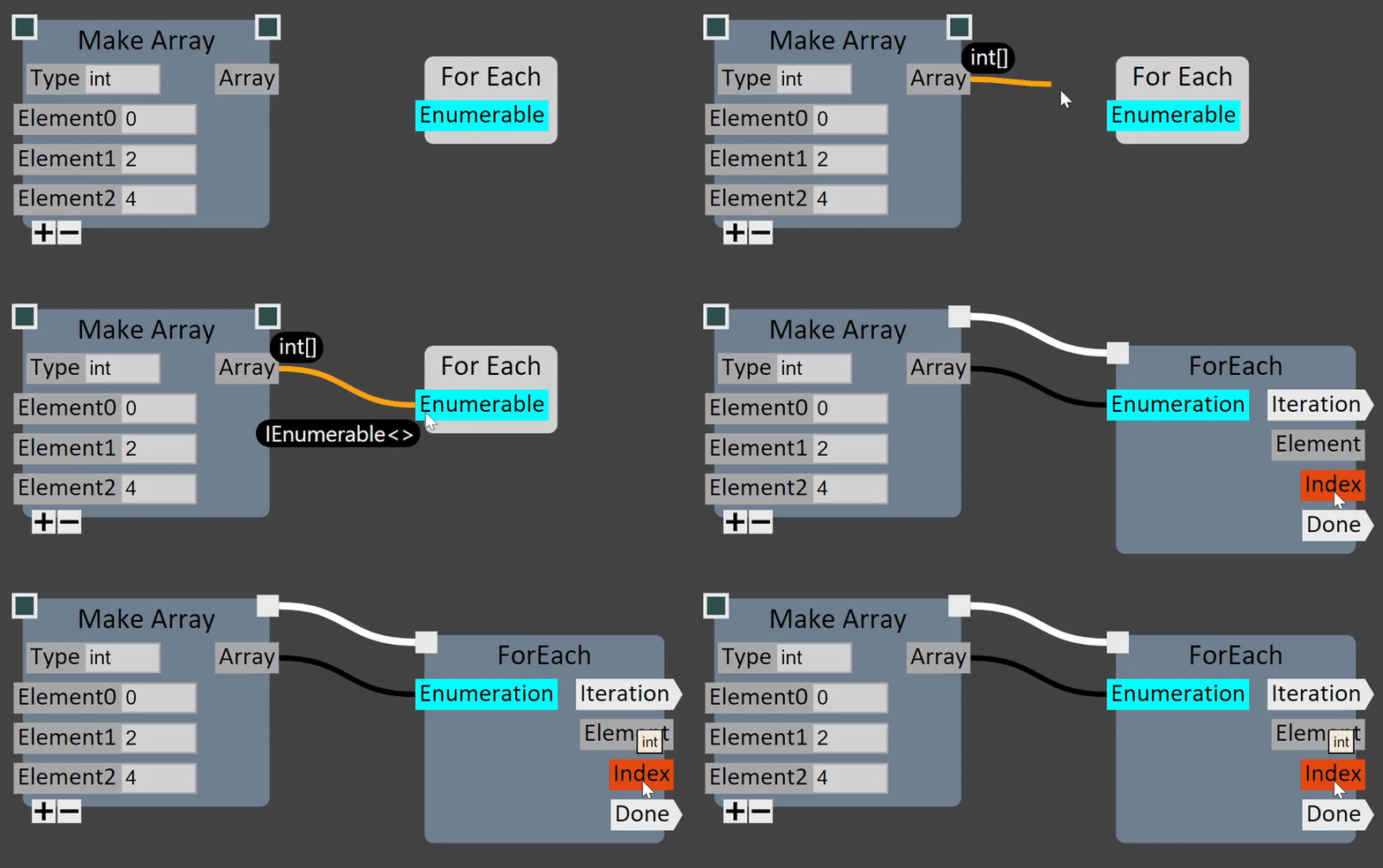
GSGraph supports the concept of “Placeholder” Nodes, which allow the graph to be created without knowing explicit types up-front. This is particularly useful for handling C# generics. In the example on the right, a ForEach placeholder node has been placed. Any type that implements IEnumerable is a valid source for the placeholder’s input pin. Once an int[] output pin is connected, the Placeholder is automatically expanded into an explicit ForEach node that takes an IEnumerable<int> input.
Dynamic Nodes
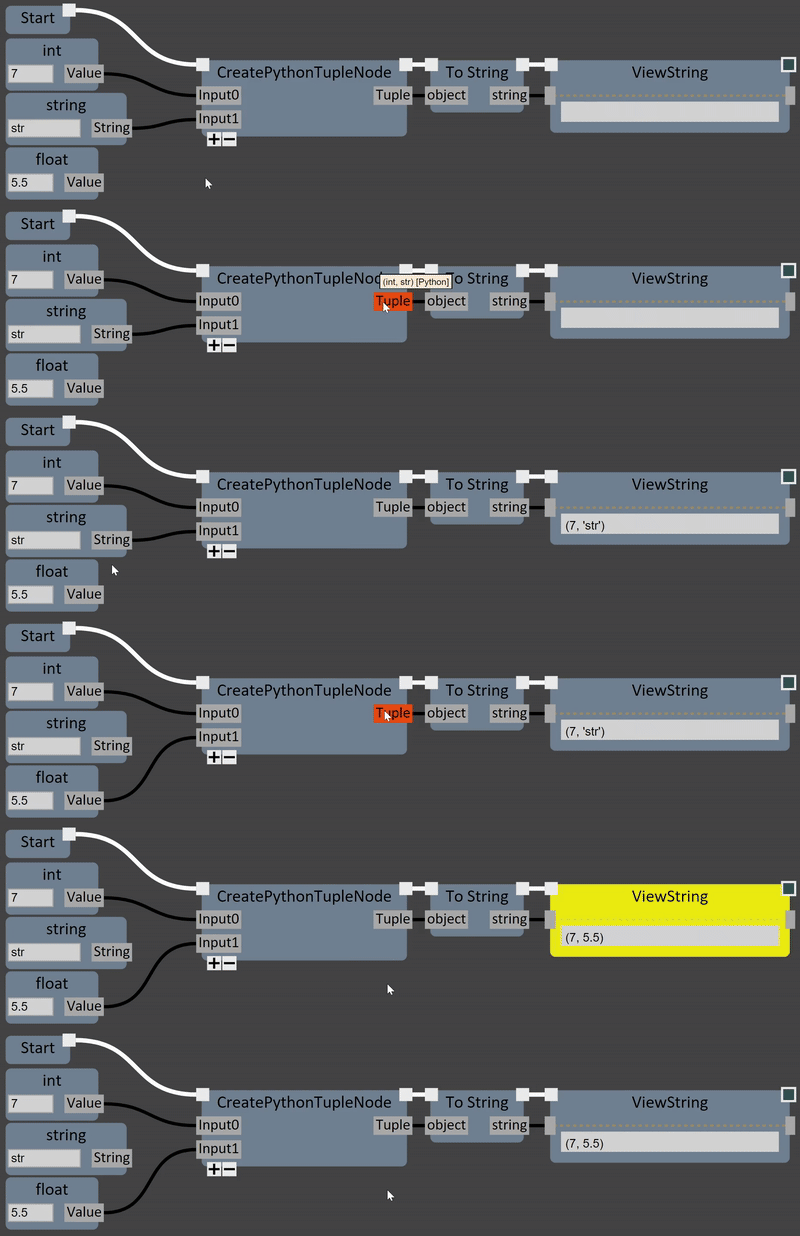
GSGraph also supports the concept of “Dynamic” node outputs, which change type depend on changes to the inputs. This is particularly useful for supporting Python interoperability. In the example below, the CreatePythonTupleNode creates a Python tuple based on the variable-length list of inputs to the Node. The types of the tuple elements are dynamically updated as the input pins (which are of C# type ‘object’) are rewired. These changes propagate through the downstream graph, and any issues discovered due to type changes are surfaced to the user.
In/Out Parameters
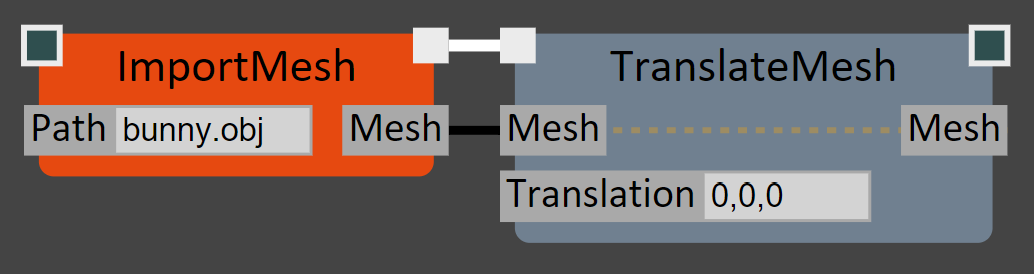
Another annoyance of NodeGraph wiring is when the output of one Node needs to be passed to several others, requiring many increasingly-long wires from the ‘output’ pin to all the downstream nodes. GSGraph supports “InOut” pins, in which the input value is automatically provided as an output. This allows Nodes to be cleanly chained with minimal wire-clutter.
On Nodes defined by static functions, C# “ref” parameters will automatically be exposed as InOut pins. The connection between the input and output pin is visualized with a dashed line in the Node, as shown in the TranslateMesh node above.
Pure Nodes
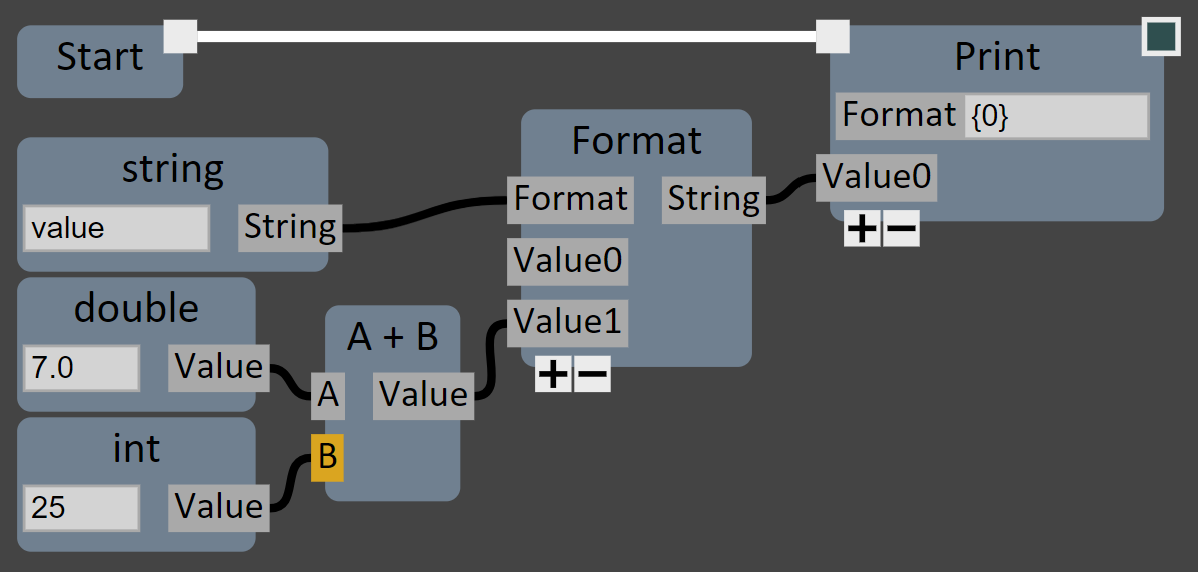
The concept of “Pure” Nodes is supported, which are nodes that don’t require execution/sequence pin wiring. This is indicated by setting the IsPure flag in the [NodeFunction] attribute (or a flag on Node classes).
Pure nodes simplify wiring up things like string manipulation or math operations, where a Node is guaranteed to have no “side effects”, ie given the same inputs it will always produce the same outputs, and so “when” it is evaluated doesn’t matter.
In some ways subgraphs of Pure Nodes (as shown on the right) are like little embedded dataflow graphs, a concept which I intend to explore further in the future.
Variables
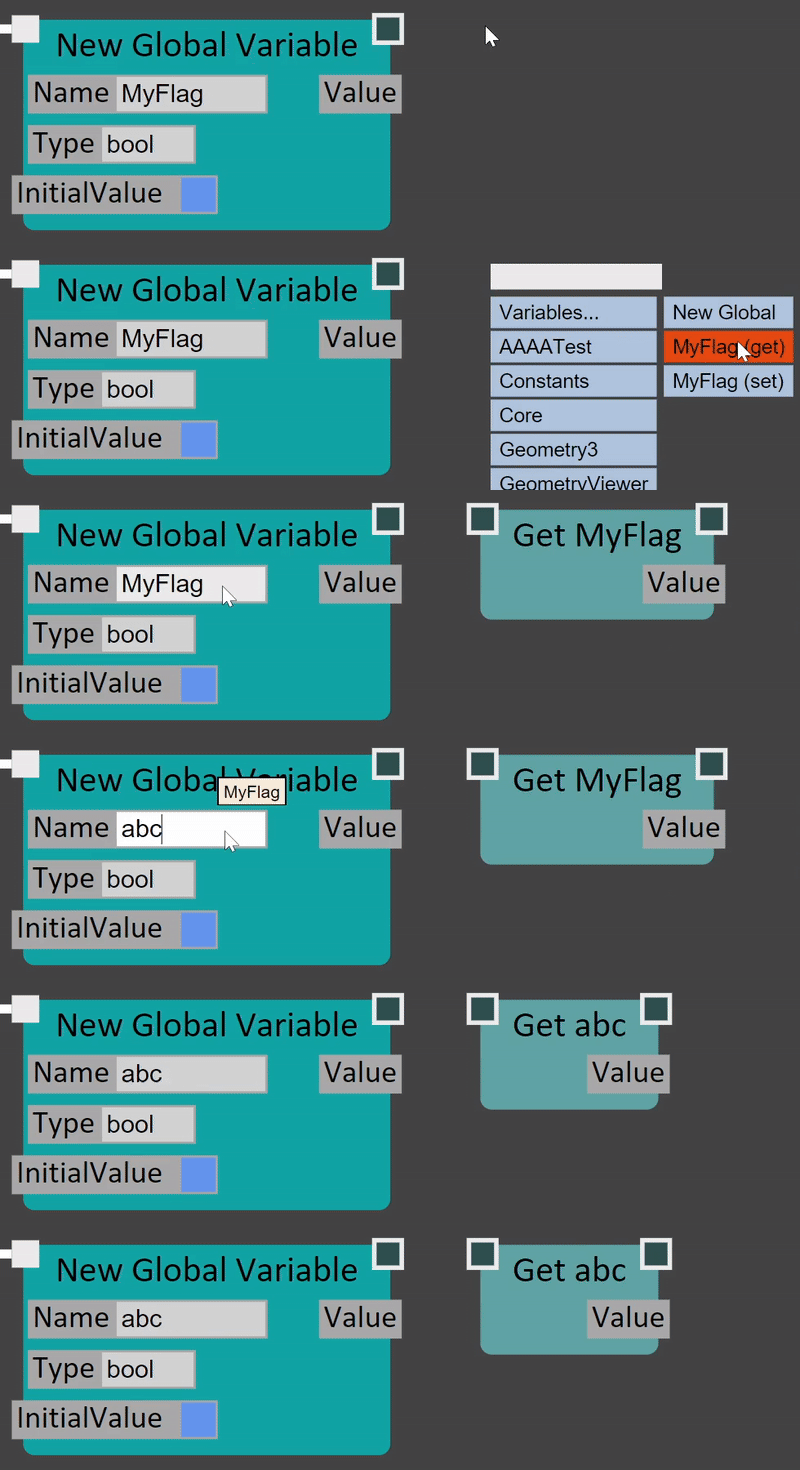
GSGraph supports explicit Variable definitions. A created Variable has a unique name, and a quick shortcut allows any output pin to be automatically wired into a New Global Variable node. Once defined, a variable can be accessed/updated with Get and Set nodes that “know” the name of their source variable, so that if the Name field is updated, all Get/Set nodes are automatically updated as well.
(Local Variables will also be supported in the future)
Aliases
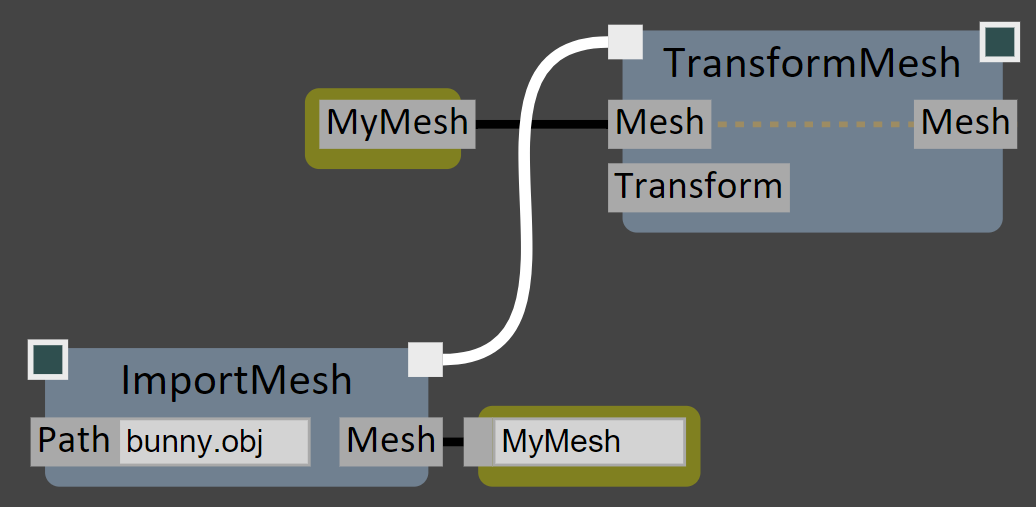
Aliases are also supported. An Alias is similar to a Variable, in that it is defined with a unique name in the graph, and can be accessed via an Accessor node. However unlike a Variable, an Alias does not have explicit storage separate from the output pin it is created from. Instead the Alias acts like a direct wire - evaluating the Accessor simply evaluates the original output pin it was connected to. This allows for cleaner graphs without changing the evaluation semantics.
Graph-Defined Functions
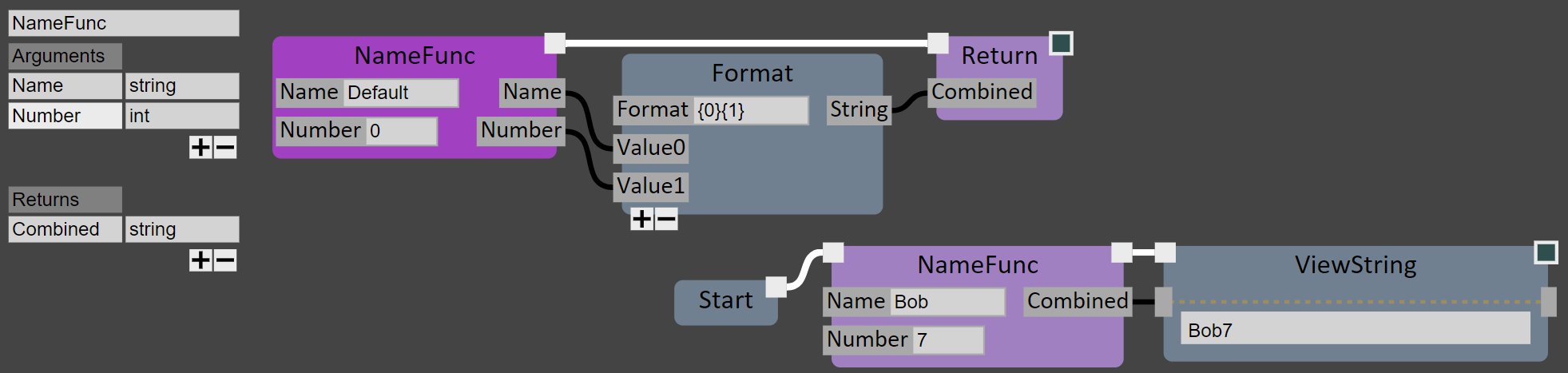
In addition to defining re-usable Nodes using compiled C# or inline CodeNodes, Functions can also be defined in the graph. These are sub-graphs that will be executed whenever they are called. In the example below I’ve defined a simple example function, called NameFunc, that takes string and int parameters, and creates a combined Name+Number string. An in-graph UI panel is used to configure the function, and Return nodes set the output-pin values. A call to NameFunc is shown in the bottom-right.
Error Handling
One of the great strengths of C# in this NodeGraph context is that, as long as the code being called is “managed” (ie C# that doesn’t use unsafe blocks, raw pointers, etc), any failure in a Node can be caught and surfaced to the user. In the example below, the output Mesh of ImportMesh is not connected to the SimplifyToTriangleCount. During evaluation, the node throws an Exception, which is caught and indicated with a red node and a hoverable exclamation-mark widget.

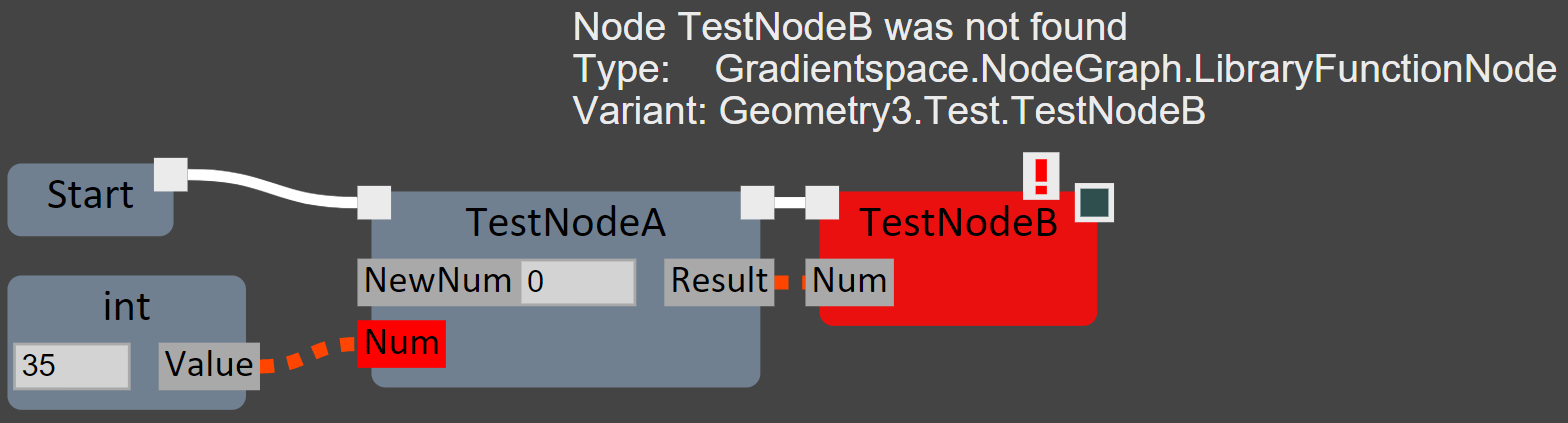
Errors can also occur when trying to load a saved graph if the underlying Node definitions have changed in some way (without proper Version handling - see the next section). In the example below, the file was saved with nodes defined as int TestNodeA(int Num) and TestNodeB(int Num). Then the TestNodeA parameter was renamed to NewNum, and TestNodeB was deleted, and the graph was reloaded. The missing node and missing/invalid data connection both remain in the graph, making it straightforward to identify what is wrong and fix it.
Versioning
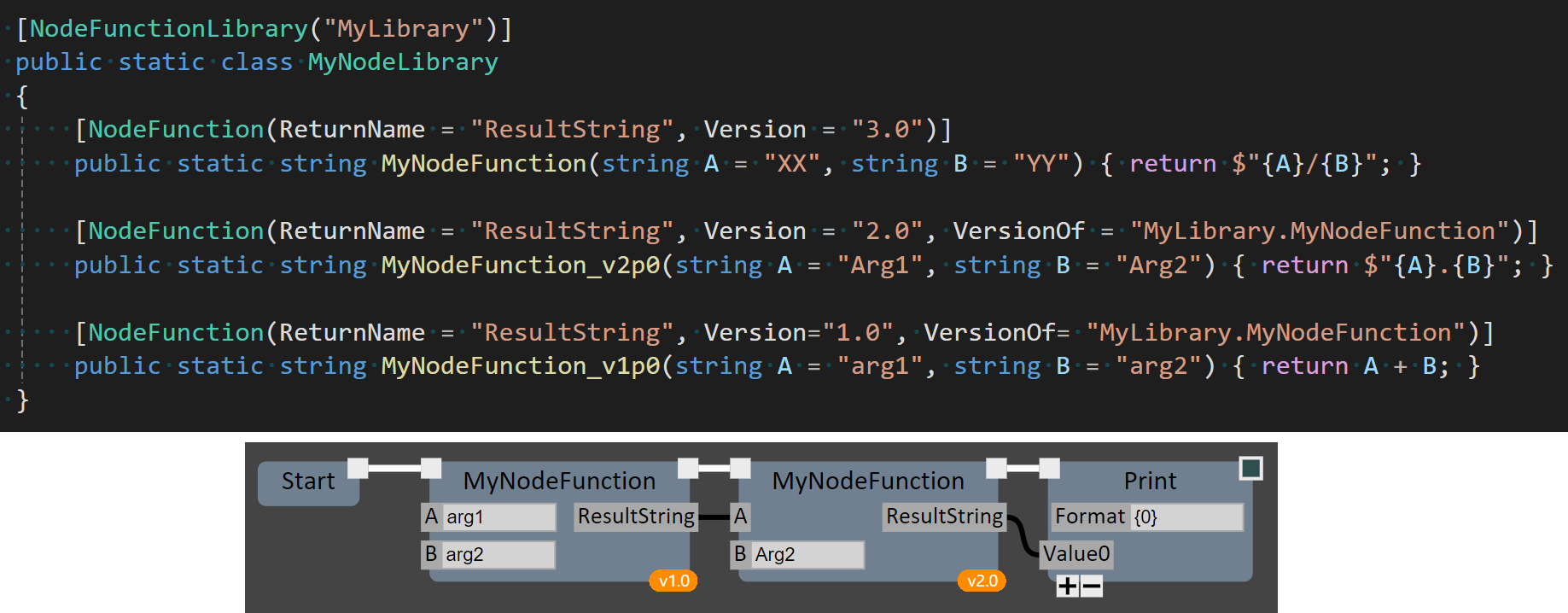
A thorny problem in any NodeGraph system is dealing with changes to Nodes, whether to fix bugs and design mistakes, or to improve functionality. In some cases, like exposing an optional parameter with a default value, the existing Node function can simply be updated. But even small changes, like modifying a default parameter, could break existing graphs, and so it’s often necessary to create a new Version of the node function. However it’s also desirable to keep the name of the node consistent, and in particular, have the ‘newest’ version of the node use the original name.
Here’s how I’ve addressed this situation in GSGraph. When a new version of a NodeFunction is introduced, the existing version is renamed, and Version and VersionOf tags are added to the [NodeFunction] attribute. An example is shown below, with 3 versions of the sample MyNodeFunction from above. When a save file is loaded that contains MyNodeFunction but with a non-current version number, the graph loader searches for the old version with the appropriate tags. The Graph Editor indicates old versions using small bubble widgets on the nodes (shown below), but maintains consistency in the node name.
Renaming
Renaming is supported for both [NodeLibrary] and [NodeFunction] tags. Old names can be added using [MappedFunctionLibraryName("OldLibrary")] and [MappedNodeFunctionName("OldLibrary.OldFunction")], respectively. Node Types can be remapped using [MappedNodeTypeName("OldNamespace.OldClassName")]
(Currently node argument remapping is not supported, but expect to see this in the future)
Gradientspace Graph File Format (.gg)
Graphs are stored in standard json, with the file extension .gg. The json structure is very minimalist, with no dependencies on internals of the Graph Engine or Editor, only the C# type and attribute information. This will (ideally) allow external applications to parse and manipulate the graph representation. And with enough training data, it should be possible to have LLMs generate the JSon for graph nodes & connections.
Partial graph files are also supported — in fact, this is how copy-paste is implemented inside GSGraphEditor! This works because during loading the Graph Serializer “rebuilds” the graph by incrementally adding nodes and wiring connections using the exact same high-level functions that run during interactive graph creation.
Debugging
In most of the animated examples shown in this page, it’s clear what is happening because the active node turns yellow during evaluation. This is happening because the graph is being evaluated in “Debug Mode”, which also currently supports Single-stepping and Stopping/Cancelling evaluation. Many more advanced graph debugging features are planned.
Dynamic Reloading / Hot Compile
The GSGraph Editor supports dynamically reloading C# Assemblies that contain node libraries. When this happens, if any new or updated Assemblies are found, the current graph is also rebuilt (via temporary save/load). This system allows for live-coding of node libraries, simply by (eg) doing a Hot Reload in Visual Studio and then running Settings > Refresh Node Libraries in the Editor. (Future work: automatic detection of recompiled libraries…)
Node Libraries
The GSNodeGraph Engine includes many different Node Libraries, exposing various C# standard libraries, Python, and core math types and geometry processing from the Gradientspace geometry3Sharp library. Expect to see much more in this direction, along with node libraries for Image processing and Machine Learning.
In addition, a few more domain-specific Node Libraries are in development. These libraries are included with the GSNodeEditor installer, but are not (currently) open-source.
Meshmixer Node Library
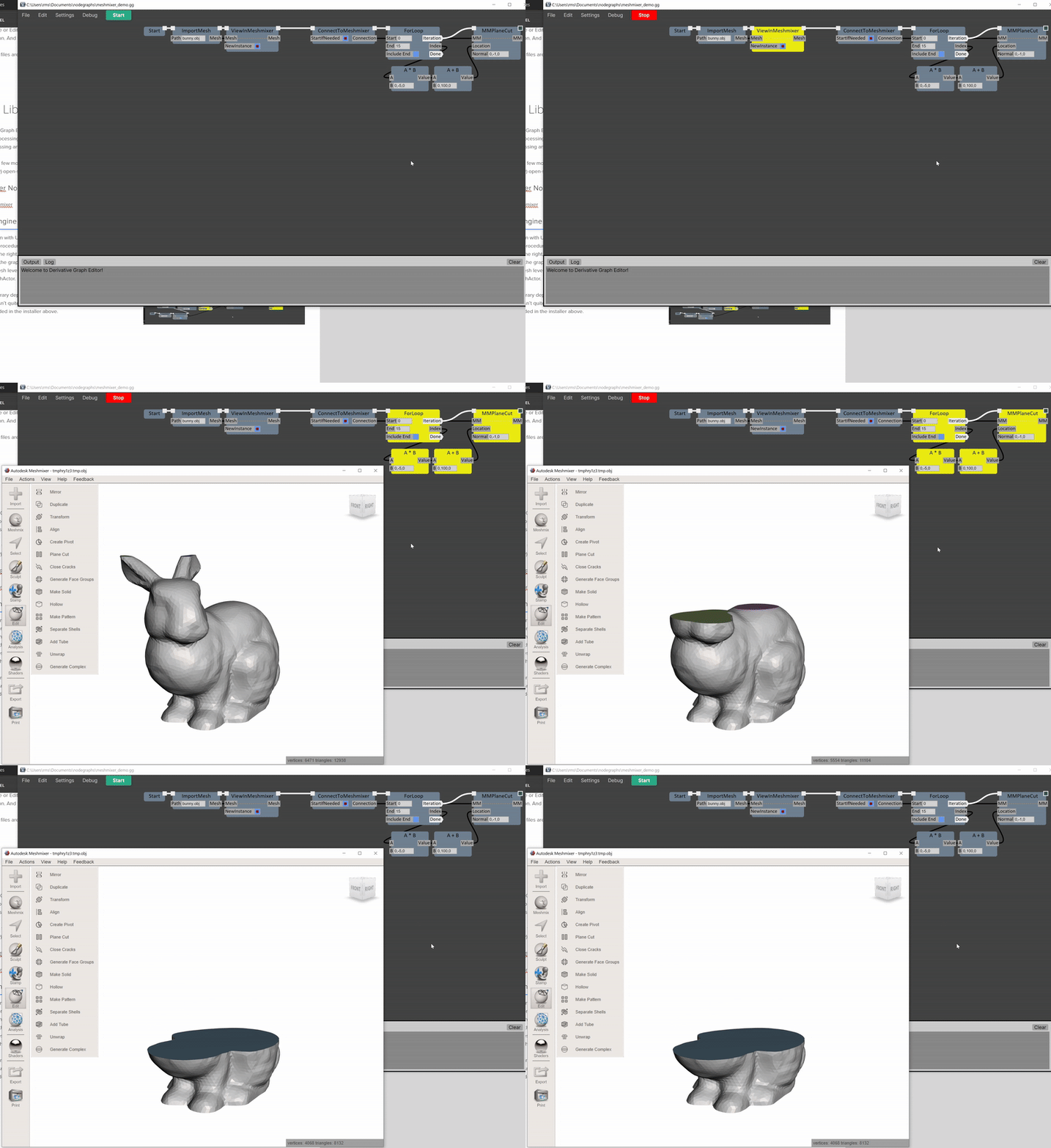
A small library of functions for remote manipulation of the Autodesk Meshmixer desktop mesh editing application is available. These nodes use a C# wrapper around the Meshmixer Remote API (https://github.com/meshmixer/mm-api) to communicate with a running Meshmixer instance. The ViewInMeshmixer node can send a geometry3Sharp DMesh3 instance to Meshmixer, and also launch a new instance of Meshmixer, and is quite useful as a “viewer” for generated 3D geometry. The ConnectToMeshmixer node opens a remote-API connection, and the MMPlaneCut node runs the plane cut tool inside Meshmixer with the specified plane.
A simple graph is shown below, which loads an OBJ file using Geometry3 nodes, then launches Meshmixer to view it, and then does repeated plane cuts as a sort of quick-and-dirty cross-sections animation. The clip to the right is a demo of evaluating this graph.

Unreal Engine Node Library
An integration with Unreal Engine is being developed, so far focused on pushing procedurally-generated geometry to Unreal. A brief demo is shown to the right, in which a mesh file is loaded and progressively simplified in the graph (using geometry3Sharp nodes), and each simplified mesh level is placed into the current UE Level as a new DynamicMeshActor.
This node library depends on an Unreal Editor plugin to communicate with, which isn’t quite ready to be released yet. So this node library is not yet included in the installer above.
Roadmap
I have a very long list of features planned for the core Node Graph, as well as the Editor. I’m generally focused on making Nodegraph-based programming more efficient and powerful for users. And I’m always interested to hear from Users what improvements they would like to see. But in the meantime, some of the core Graph features I have planned include:
Built-in support for explicit Parallel evaluation and handling of C# Async/Task concepts
Infinite Loop detection
improved support for Graph-defined Functions and Variables (eg Local/Scope Variables)
Expression nodes for inline math (without having to define a full Code Node), and automatic Node/Expression conversion
“Graph Assets” for node-function Code, Images and other Data stored as explicit local files
Code Generation (ie generating a standalone C# program from a graph)
More types of Control Flow, including graph sections that can be toggled on/off
There is a also lot of UX work to be done in the Editor, things like:
Standard stuff that is still missing like Comments, different wire styles, node resizing and labelling, etc
Improving visualization and handling of Node and Connection errors, and automated graph repair/updating
More advanced Static Analysis that can detect problematic wiring, visualize execution scopes, and so on
Node Docking and Collapsing, and other advanced Graph auto-formatting and layout capabilities
Graph Debugging tools, breakpoints / watchpoints, and pin data inspection
Of course there are also a lot of bugs! Apologies in advance for those - please report issues you find on Discord or BSky.
Why C#?
It seems that to many people, C# is still a “Microsoft Language” or a “Java clone”. Although it’s become widespread in the games industry due to usage in Unity and Godot, most of my friends in Academia or other areas of the tech industry don’t have much cause to use it. When I’ve shown this system to people, I’ve been asked “Why not build it in Python or Javascript (or Rust, or even C++)?” So I thought I’d just explain why I think C# is the ideal language for this kind of system:
Cross-Platform - of course it’s a huge benefit that C#/dotnet is now fully cross-platform, and so are many of the major UI frameworks and libraries. This situation has improved dramatically since the early days of C#, or even since ~2016 when I started doing serious work in C#.
Strong Static Typing - a powerful type system is critical for node graph user interfaces because the whole point is to make it easy to wire things up. Context-sensitivity based on pin types makes building graphs much faster, and pre-validating what connections are allowed means you don’t have to run the graph to find out of it it will work (this is kinda the ‘syntax checking’ of node graphs).
Powerful Dynamic Typing - C# also has great support for dynamic typing. With UE BP, I really felt the pain of not being able to write nodes that can take “anything” and operate at a generic level, or internally sort out what to do with it. The integration of Python into C# is entirely dependent on being able to handle Python dynamic typing transparently.
Deep Reflection System - C# has an amazing reflection/introspection system, which I have used extensively to build both the GSGraph Engine and Editor. Dynamically creating Nodes that wrap static functions, extracting parameters and default values, is refreshingly straightforward to implement using C# Reflection.
Comprehensive Standard Libraries - of course it’s nice that the standard C# SDK includes nearly every common thing you would like to do. In the Node Wizard example above, where it queries Github, the HTTP and JSON processing is all C#-standard. The C# standard libraries are not perfect, but they are extremely thorough, which makes it much easier to build out common Nodes.
Attributes System - I’ve leaned heavily on a method/class tagging system to support the implementation of Node Libraries. Unlike most other languages, the ability to tag code constructs with custom Attributes is built into C#. There are some limits to this system, but not having to rely on some kind of preprocessor or code-generator makes everything so much more straightforward.
Runtime Compilation - Another critical feature of C# is that the C# Compiler is basically standardized and available as a C# library you can trivially add to any project - it’s called Roslyn. So implementing the dynamic-compilation aspect of the in-graph Code Nodes did not involve any serious hurdles. And it’s not just a compiler, it’s a full code analyzer (which I haven’t taken much advantage of, yet).
Version Compatibility - A very nice aspect of C# is that it’s possible to load modules/assemblies (ie DLLs) compiled against older versions of the C# language and .NET frameworks. It’s even possible to load multiple different versions. This management can all be handled from within the C# app. And there is a centralized way to distribute different versions (nuget.org). This a huge win for supporting custom Node Libraries.
You made it to the bottom! Now go back and click the Download links…